Your First Game in Unity: Ghost Evader: Part 09: Player Collisions
In this post we are going to set up the Player collisions. When the Player touches an enemy, the enemy should be destroyed and the Player should die.
Welcome to the next step in the setup for our game, Ghost Evader. This is a simple 2D top-down game where the player must collect coins and stay alive as long as possible. In this series we are going to go step by step and explain everything as clearly as we can.
We have a lot to cover so let’s get started!
Understanding 2D Collisions and Triggers
Before we write the collision code, let’s take a moment to understand how Unity handles collisions in 2D.
In our game, both the Player and the enemies have a Rigidbody2D and a BoxCollider2D. These components serve different purposes.
The Rigidbody2D allows an object to participate in Unity’s 2D physics system. The BoxCollider2D defines the area that Unity uses to detect interactions with other objects.
An important rule to remember is, at least one of the two objects involved in a 2D collision or trigger interaction must have a Rigidbody2D. Not every object needs one. For example, our walls can have colliders without needing their own Rigidbody2D, because the Player already has one.
One important setting on a collider is Is Trigger. When this is unchecked, the collider participates in physical collisions. For example, our Player’s collider uses its default setting, so the Player cannot simply walk through the walls. Unity’s physics system prevents the colliders from passing through one another.
Our enemies are ghosts, so we want them to behave differently. Their BoxCollider2D has Is Trigger enabled. This allows them to pass through walls instead of being stopped by them, while still allowing us to detect when they touch the Player.
A trigger does not physically block another collider, but it can generate events when another collider enters, stays within, or leaves its area. This is what allows us to detect when the Player touches an enemy.
Because both the Player and the enemy have a Rigidbody2D, Unity can generate the relevant trigger events for our setup. We can respond to those events in code without needing the enemy to physically collide with the Player.
With this in mind, let’s look at how we can use OnTriggerEnter2D to detect when the Player touches an enemy.
Detecting the Trigger
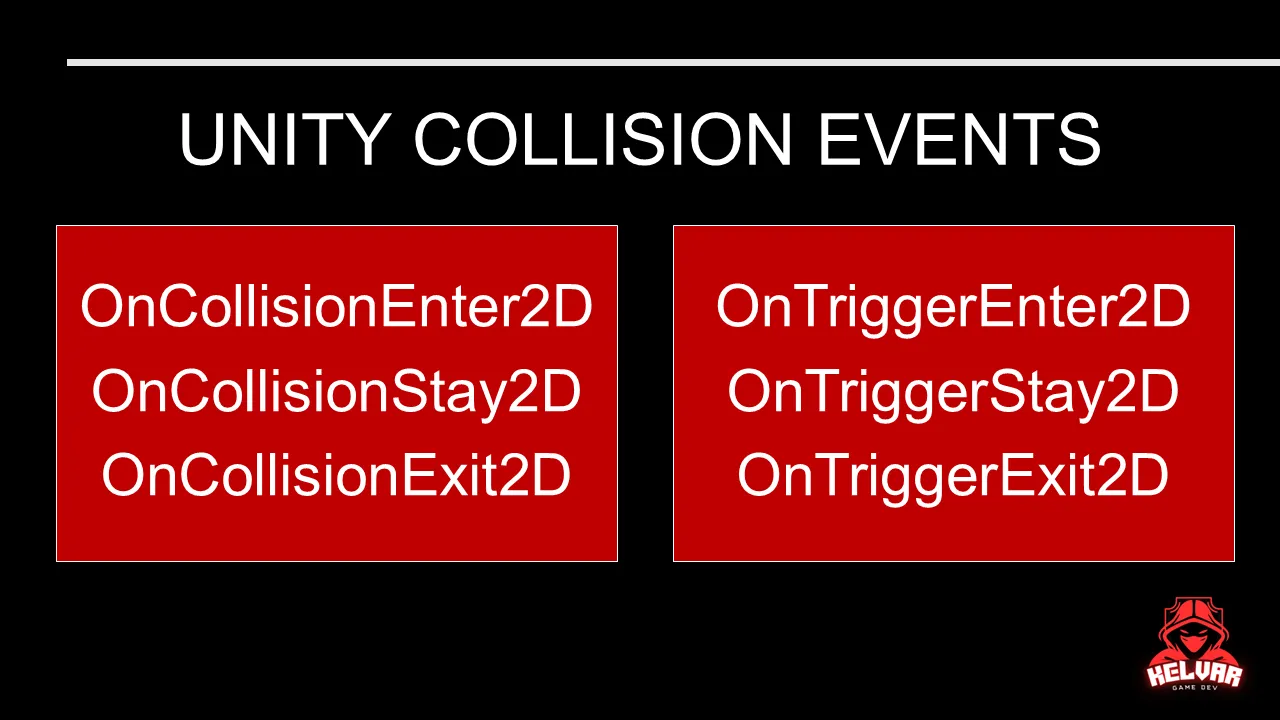
Unity provides a number of ways to detect when objects interact. For this example, we are going to use OnTriggerEnter2D. There is a similar function called OnCollisionEnter2D, which is used when two colliders are physically touching each other.
As we covered in the Enemy Setup post, we are spawning enemies through the ObjectSpawner we created earlier in the series. Each enemy is created from a prefab, with a collider set to Trigger, so we need a way for the Player to recognize an enemy when they touch.
Add the following function to the Player class:
private void OnTriggerEnter2D(Collider2D other)
{
    if (other.gameObject.CompareTag("Enemy"))
    {
        Destroy(other.gameObject);
        _gameManagerScript.PlayerHasDied();
        Destroy(gameObject);
    }
}
Let’s break this down.
OnTriggerEnter2D is a Unity event. Unity calls this function when the Player’s trigger collider begins to overlap another collider. We do not call this function ourselves.
The other parameter is the Collider2D that the Player has entered. We can use this to find out which GameObject the Player has touched.
We are using CompareTag to check whether the other GameObject has the Enemy tag. Make sure the enemy prefab has the Enemy tag set in the Inspector and that the Enemy script is attached, as covered in the Enemy Setup.
If the other GameObject has the Enemy tag, we do three things:
- Destroy the enemy GameObject.
- Call
PlayerHasDied()on the GameManager. - Destroy the Player GameObject.
Notice that all three actions are inside the if statement. This is important. The Player should only die when the object it touches is an enemy. If the other object does not have the Enemy tag, this function does nothing.
Destroy(other.gameObject) destroys the object that the Player has touched. Destroy(gameObject) destroys the GameObject that this script belongs to, which is the Player.
For this post, we are only handling enemies. We will add pickups later in the series, so we will need to come back to this function and add logic to handle objects with a Pickup component.
Player - Game Manager Communication
As we discussed in the Game Manager post, the GameManager is responsible for handling the game flow, including what happens when the Player dies.
The Player already has a reference to the GameManager through _gameManagerScript. We can use that reference to call a function on the GameManager when the Player dies.
We have not written PlayerHasDied() yet. For now, add an empty function to the GameManager class:
public void PlayerHasDied()
{
}
The function is intentionally empty. We are just setting up the communication between the Player and the GameManager. We will add the actual behavior when we cover handling the Player’s lives.
The function is public so that the Player class can call it. It returns void because it does not need to return a value.
Save your scripts and run the game. When the Player touches an enemy, both the enemy and the Player should be destroyed. The GameManager function will be called, but nothing will happen inside it yet.
Refactoring to Use TryGetComponent
The tag check works, but it requires us to assign the correct tag to every enemy GameObject. In addition, the Tag property is a string reference, which can easily be mistyped.
Another option is to check whether the GameObject has a particular component.
In our project, we will assume that every enemy GameObject has an Enemy component. We can use
TryGetComponent to check for that component instead of checking the tag.
Replace the previous function with this version:
private void OnTriggerEnter2D(Collider2D other)
{
    if (other.TryGetComponent<Enemy>(out _))
    {
        Destroy(other.gameObject);
        _gameManagerScript.PlayerHasDied();
        Destroy(gameObject);
    }
}
The important change is:
other.TryGetComponent<Enemy>(out _)This asks Unity to check whether the collider’s GameObject has an Enemy component. If it does, the function returns true and the code inside the if statement runs. If it does not, the function returns false and nothing happens.
The out part is used to receive a reference to the component if one is found. We only need to know whether the component exists, so we use _ to indicate that we do not need to keep that reference.
There is an important difference between these two approaches:
CompareTag("Enemy")checks whether the GameObject has a tag namedEnemy.TryGetComponent<Enemy>(out _)checks whether the GameObject has anEnemycomponent.
For this version, the enemy must have the Enemy component attached. It does not also need the Enemy tag. If the component is missing, the Player will not die when touching that object.
We will use this component-based approach going forward. When we add pickups, we can extend the same function to check for a Pickup component and handle it separately.
Testing the Changes
Make sure the enemy prefab has the Enemy tag and the Enemy component attached, as covered in the Enemy Setup. Also, make sure the Player and enemy colliders are set up to generate trigger events.
If you need a refresher on setting up the Rigidbody2D and colliders, you can return to the Enemy Setup video, where we covered the physics setup for our enemies.
Run the game and move the Player into an enemy. The enemy and Player should be destroyed. Then test the Player against another object that does not have an Enemy component. The Player should remain alive.
If the trigger function is not called, check the collider setup. For 2D trigger events, the colliders need to be configured correctly, and at least one of the objects involved needs a Rigidbody2D.
If TryGetComponent<Enemy> does not compile, make sure Enemy matches the name of the enemy script’s class.
Conclusion
We have now set up the Player to detect when it touches an enemy. We started with a tag check and then refactored the code to use TryGetComponent.
The Player now tells the GameManager when it dies, although PlayerHasDied() does not do anything yet. We will add that behavior when we implement the Player’s lives.
We will also return to the collision handling when we introduce pickups, so the Player can respond to those objects differently.
Next, we will continue building on the game manager and the game flow.