Why Does My Unity Jump Button Fire Multiple Times?
In the last post we replaced Input.GetAxis with Unity’s newer Input System, using the PlayerInput component with Invoke Unity Events. Movement is a continuous input, so the value we read from the InputAction.CallbackContext was everything we needed.
Jumping is a different kind of action. It is a single, discrete event: the player presses a button and something happens only once.
So you add a Jump action, write what feels like the obvious code for it, and press the space bar. Instead of a nice little hop, your character rockets upward as if it was shot out of a cannon, and the Console tells you your jump function was called more than once for a single press.
That is the situation we’re going to look at today. Since a button press is a different scenario than the one we covered last time, it is also the right moment to look at more of what that context is telling us.
Let’s figure out what is going on!
One thing before we start
In my earlier posts, our player moved in a top-down view. Think of a game where you look down at the map and the player can walk up, down, left, and right. A jump makes little sense there because there is no ‘down’ for the player to fall back to.
So for this post we’re starting from a different premise: a 2D platformer. The player moves left and right, and gravity pulls them back down after a jump.
If you followed along with my pause screen post, the idea is the same. Input lives on its own game object, and the player only worries about the player. The movement code just changes a little.
Also, this post is not about when the player is allowed to jump. As you will see, our player will be able to jump in midair as many times as we press the button. We’ll fix that in a future post. Today is only about why the jump fires more than we expect.
What we’re starting with
Here is the scene we’re working with. Nothing fancy.
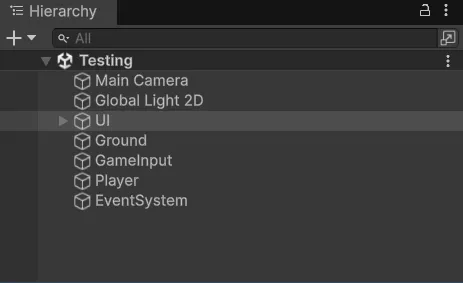
- A
Playergame object with a sprite, aRigidbody2D, a collider (aBoxCollider2DorCapsuleCollider2Dworks fine) and ourPlayerMovementscript. - A
Groundgame object with a wideBoxCollider2Dso the player has something to stand on. - A
GameInputgame object with aPlayerInputcomponent. Its Actions field points to an Input Actions asset I calledGameInputActions, and its Behavior is set toInvoke Unity Events.
As we did in the pause screen post, the input has its own game object. That way the Player isn’t responsible for input, it is just something that receives it. Separation of concerns!
Our GameInputActions asset is a copy of Unity’s default Input Actions asset, which I walk through in my 2D movement post and video. I’m using a copy because Unity doesn’t want the PlayerInput component using the project-wide default asset, and the Editor shows a warning when it does. Using a copy makes the warning go away. (I’ll go into more detail about the project-wide asset in another post.)
In my copy I removed everything from the Player action map except the two actions we need:
Move, which returns aVector2Jump, which we’ll look at in a moment
I kept the UI actions that come with the default asset. They will come in handy when we start working on UI later.
NOTE: You don’t need to copy the default asset to follow along. You can create a new, empty Input Actions asset and add Move and Jump actions to it yourself. Everything in this post works the same way.
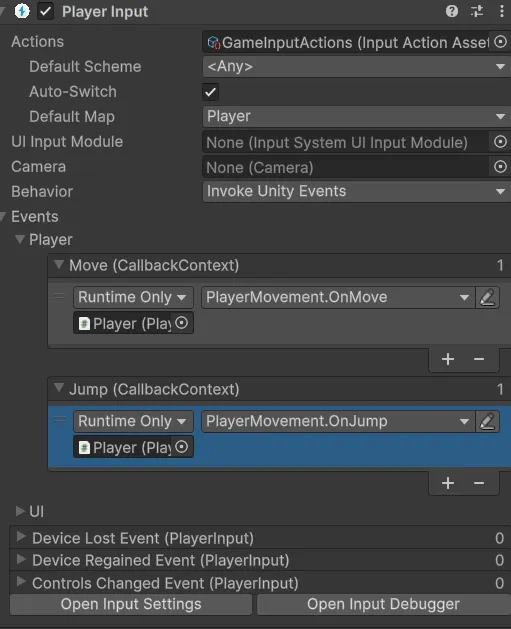
And the Move event on the PlayerInput component is already wired to the OnMove function in our PlayerMovement script, the same way we did last time. Now I’ve already written the OnJump function when I tested this, we’ll write the code for this below.
The Rigidbody2D settings
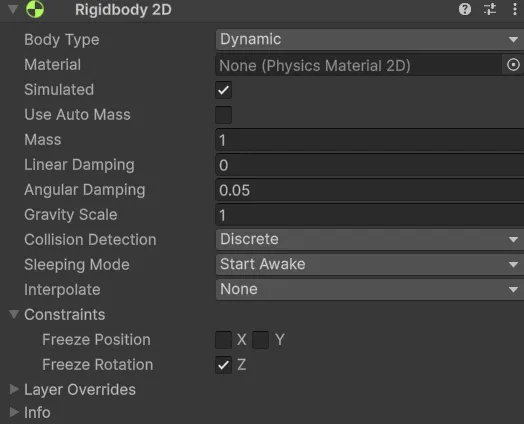
Since this is a platformer now, there is one change we need to make to the Rigidbody2D on the player.
Gravity Scale needs to be 1. In the top-down movement post we set it to 0 because there is no reason to have gravity in a top-down game (the player would just fall off the screen). Now we want it.
Freeze Rotation Z under Constraints should stay checked, as it was in that post. Without it, the player can tip over when it bumps into things, and a character that falls over like a plank of wood is no fun to control.
Step 1 – Review the movement script
Before we add the jump, let’s look at the movement script we’re starting with. It is very close to what we had before, but there is one important difference.
using UnityEngine;
using UnityEngine.InputSystem;

public class PlayerMovement : MonoBehaviour
{
    [SerializeField] private float moveSpeed = 5f;

    private Rigidbody2D playerRigidbody2D;
    private Vector2 moveInput;

    private void Awake()
    {
        // Rigidbody2D is on this same game object, so we initialize it in Awake
        playerRigidbody2D = GetComponent<Rigidbody2D>();
    }

    public void OnMove(InputAction.CallbackContext context)
    {
        moveInput = context.ReadValue<Vector2>();
    }

    private void FixedUpdate()
    {
        playerRigidbody2D.linearVelocity = new Vector2(moveInput.x * moveSpeed,
                                            playerRigidbody2D.linearVelocity.y);
    }
}
Let’s walk through this:
private Rigidbody2D playerRigidbody2D;This is a reference to the Rigidbody2D on our player. We get it once in Awake using GetComponent, rather than asking for it over and over again every frame. (If you read my 5 Unity Coding Habits Worth Rethinking post, this is the better way to do it.)
You may be wondering why this is in Awake and not Start. This is a habit I follow, and you will see it in all of my examples:
- Components on this same game object get initialized in
Awake. TheRigidbody2Dis on the player, right next to this script, soAwakeis the place for it. - Components we find on other game objects get initialized in
Start.
The reason is the order Unity runs things. Unity calls Awake on every object when the scene loads, but it doesn’t guarantee which object’s Awake runs first. Once all of the Awake calls are finished, then Unity calls Start. So if we go looking for something on another game object in Awake, that object may not be ready yet. Doing it in Start avoids that whole race condition.
public void OnMove(InputAction.CallbackContext context)
{
    moveInput = context.ReadValue<Vector2>();
}
This is the same as last time. When the input changes, Unity calls this function, and we store the latest value in moveInput. We don’t move the player here, we only remember what the player wants to do.
Now here is the part that changed. In the top-down version, our movement line looked like this:
playerRigidbody2D.linearVelocity = moveInput * moveSpeed;We handed the whole Vector2 straight to the velocity. That is fine when there is no gravity, because the player only moves when we tell it to.
But now gravity is pulling our player down, and the way physics does that is by changing the y part of the velocity. So if we set the whole velocity from moveInput, we overwrite the y value every physics update with 0. Gravity (and later, our jump) would be wiped out almost instantly.
So we do this instead:
playerRigidbody2D.linearVelocity = new Vector2(moveInput.x * moveSpeed,
                                    playerRigidbody2D.linearVelocity.y);
We create a new Vector2 where:
- the x value comes from our input, so left and right work as before
- the y value is whatever it currently is (
playerRigidbody2D.linearVelocity.y), so we leave gravity and jumping alone
This also means pressing W or S does nothing now. For a platformer that’s exactly what we want.
NOTE: If your jump seems to do nothing at all later on, check this line first. It is one of the most common reasons a Rigidbody2D jump gets canceled out.
Step 2 – Check the Jump action
Open your Input Actions asset (GameInputActions in my case) and select the Jump action in the Player action map. If you created your asset from scratch, add a new action named Jump to your action map first.
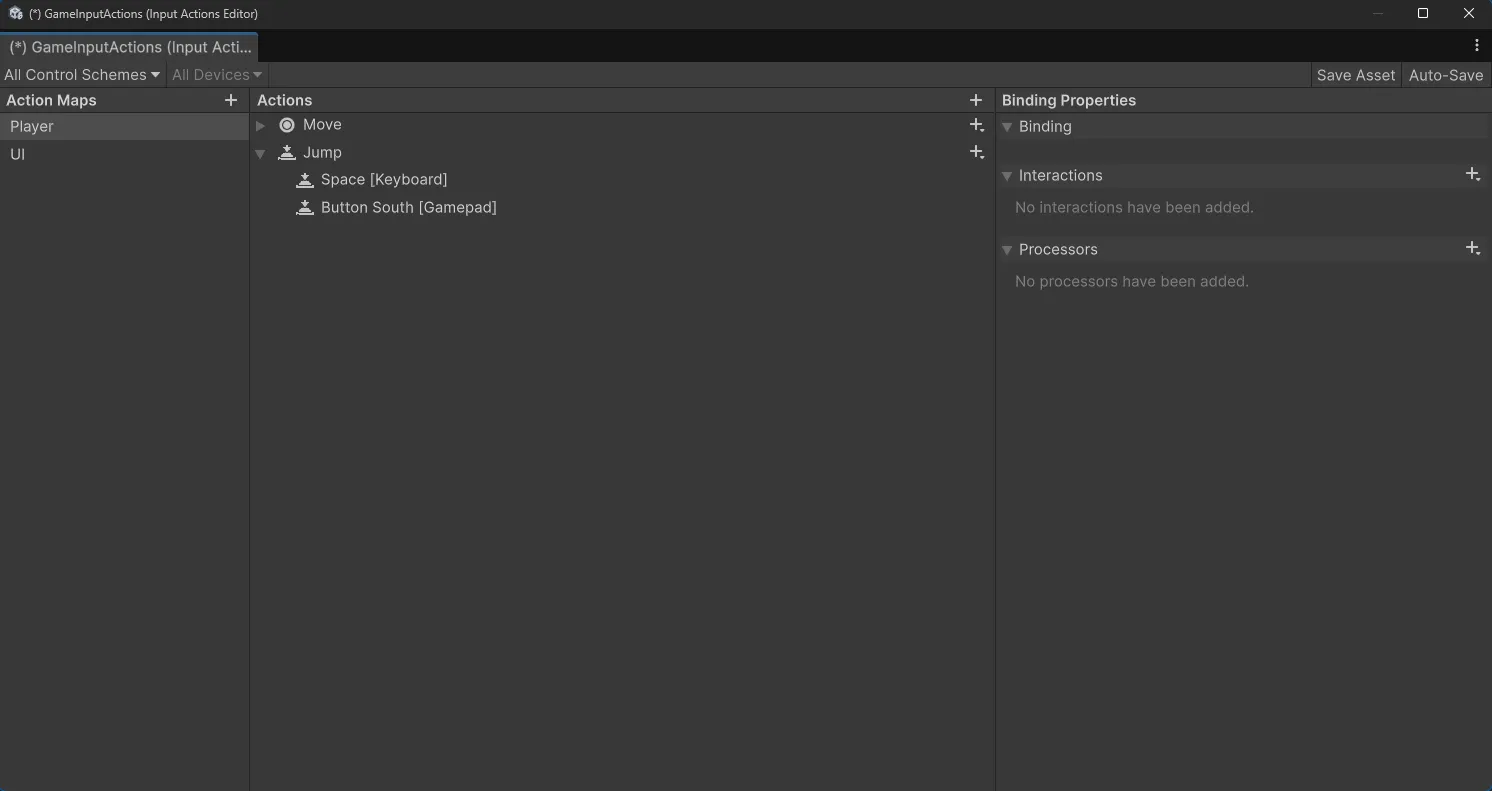
There are two things to look at:
- The binding. Mine is mapped to the
Spacekey and a gamepad button. You can add a gamepad button as well if you like. - Action Type. This should be set to
Button.
Keep that second one in mind, we’re going to come back to it. Move is a Value action because it gives us a value (a Vector2). Jump is a Button action because the only thing we care about is that the player pressed it. Those two are very different animals, and that is the heart of this post.
Step 3 – Wire up the Jump event
Now we connect the action to our code, the same way we did for Move.
- Select the
GameInputgame object and find thePlayerInputcomponent. - Open the Events section and expand the
Playeraction map. - Find the
Jumpevent, click the+button, and drag thePlayergame object into the slot. - In the function dropdown, choose
PlayerMovementand thenOnJump.
Of course OnJump doesn’t exist yet if you’re following along. I took this screenshot after I wrote it, so let’s write it now. (Note: if you don’t see OnJump in the dropdown later, the usual reason is that the function isn’t public.)
Step 4 – Write the jump (the obvious way)
Here is how most of us would write it. We just followed the pattern we used for OnMove. Add this to PlayerMovement:
[SerializeField] private float jumpForce = 5f;

public void OnJump(InputAction.CallbackContext context)
{
    Debug.Log($"OnJump called, phase: {context.phase}");
    playerRigidbody2D.AddForce(Vector2.up * jumpForce, ForceMode2D.Impulse);
}
Let’s break this down:
playerRigidbody2D.AddForce(Vector2.up * jumpForce, ForceMode2D.Impulse);AddForce pushes the Rigidbody2D. Vector2.up is a shortcut for (0, 1), so we push the player straight up, scaled by jumpForce.
ForceMode2D.Impulse means we apply the whole push at once, like a sudden kick, instead of a force that builds up over time. That is what a jump is, a quick kick upwards. (I set mine to 5, but your number will depend on your mass and gravity settings, so tweak it until it feels right.)
Notice the difference from OnMove. In OnMove we only stored a value and let FixedUpdate do the work. Here we don’t store anything. A jump is a single event, so we just do it right away when we’re told to.
In my earlier videos I kept the Console clean so we could focus on one thing at a time. This time we need a window into what Unity is doing, so we’re adding a Debug.Log.
Now this line:
Debug.Log($"OnJump called, phase: {context.phase}");You may have heard the term string interpolation before. That is what the $ in front of the string is doing. It lets us put a variable (or any expression) inside curly braces and have its value inserted into the text. So {context.phase} gets replaced with whatever the phase is when the line runs. It is a lot easier to read than gluing pieces of text together with +.
We’re printing something called context.phase. Don’t worry about what that means yet, I just want you to see it in the Console in a moment.
Step 5 – Press Space and see what happens
Press Play and tap the space bar once.
You were probably expecting a small hop. Instead, the player jumps entirely off the screen from a single press.
Now take a look at the Console. You pressed the button one time, but the Console says:

One key press. Multiple calls to OnJump. And each call applied a full jump impulse, so all of those kicks stacked on top of each other.
If you are following an older tutorial and this happened to you, relax. Nothing is wrong with your setup. This is how the Input System is designed to work.
So why did Move work and Jump doesn’t?
On the surface they look the same. Both functions take a context, and both are wired up through the PlayerInput component. But one is a Value action and the other is a Button action, and that changes what Unity is actually telling us when it calls our function.
If you are coming from the old Input class, there is a mental model that trips a lot of us up. Input.GetKeyDown(KeyCode.Space) was true for exactly one frame, the frame the key went down. It is natural to assume OnJump works the same way: ‘the player pressed jump’. It doesn’t.
Let’s look at Move first:
public void OnMove(InputAction.CallbackContext context)
{
    moveInput = context.ReadValue<Vector2>();
}
Move is a Value action. Each time Unity calls OnMove, it is saying ‘here is the current value of Move’. Press D and the value is (1, 0). Let go of D and the value is (0, 0). Every call is a snapshot of what is true right now, and we simply store the latest one. It doesn’t matter how often we get told, because the newest snapshot is always correct. (This is also why letting go of the key matters. It is the call that hands us the zero that stops the player.)
Now Jump:
public void OnJump(InputAction.CallbackContext context)
{
    playerRigidbody2D.AddForce(Vector2.up * jumpForce, ForceMode2D.Impulse);
}
Jump is a Button action. There is no value to read and nothing to store. The call itself is the news: something just happened to the Jump button. And Unity tells us about more than one thing that happens during a single press. Pressing the button and letting go of it both cause calls, and our OnJump treated every one of them as ‘the player-pressed jump’.
So that’s the idea I want you to take away from this post:
- With a Value action (like movement), each call describes the current state. Store the latest one and you’re fine.
- With a Button action (like jumping), each call describes something that happened. It is up to us to decide which of those things we react to.
Each time Unity calls our function, it hands us the context, and that context tells us which moment we are in. That is the phase we printed in the Console. We never needed it for Move, because a snapshot is a snapshot. But for Jump we need to be choosy about which moment we react to.
Step 6 – Fix it
The fix is to only jump for one of those moments. We want to react when the action has been performed:
public void OnJump(InputAction.CallbackContext context)
{
    Debug.Log($"OnJump called, phase: {context.phase}");

    if (context.performed)
    {
        playerRigidbody2D.AddForce(Vector2.up * jumpForce, ForceMode2D.Impulse);
    }
}
context.performed is a bool, and more specifically, it is a property of the context. A property is a value that belongs to an object, and we read it using a dot, just like we do with context.phase. It is true only during the moment the action is considered completed (for our button, that means the press). For the other moments it is false, so our if block is skipped.
Press Play and tap the space bar again. This time the player makes one normal jump.
Now look at the Console:
OnJump called, phase: Started
OnJump called, phase: Performed
OnJump called, phase: Canceled
Notice that OnJump is still being called the same number of times. We didn’t stop Unity from calling our function. We simply chose to only act on one of those calls.
That’s why we can delete the Debug.Log now. It was just there to help us see what was happening.
public void OnJump(InputAction.CallbackContext context)
{
    if (context.performed)
    {
        playerRigidbody2D.AddForce(Vector2.up * jumpForce, ForceMode2D.Impulse);
    }
}
NOTE: I’m purposely not going deep into what each phase means (Started, Performed and Canceled) in this post. It is a lot to take in at once, and I’d rather do it justice in its own post and video. For now, remember that your function can be called more than once for a single button press, and for a button you usually want context.performed.
It still fires more than once
If you added the check and your jump still seems to fire too often, here are a few things to check:
- Action Type. Go back to your
Jumpaction in the Input Actions asset and make sure it’s set toButton. If it is set to something else, likeValueorPass-Through, you can get extra calls. - The event is wired twice. Look at the
Jumpevent on thePlayerInputcomponent. IfOnJumpshows up in the list twice, Unity will happily call it twice. - Two components. If you have two
PlayerInputcomponents in your scene, or thePlayerMovementscript is on more than one object, each of them will respond to the press.
What we haven’t covered
You may have noticed that our player can still jump in midair. Press the space bar enough times, and you’ll fly right off the top of the screen. That is because we never check whether the player is standing on something. I’ll cover that in a future post, a ground check.
And as I said above, I’ll do a separate post and video on what Started, Performed and Canceled really mean. I will also show you how you can use them to do things like control how high the player jumps based on how long you hold the button.
Final Code
Here is the complete PlayerMovement script:
using UnityEngine;
using UnityEngine.InputSystem;

public class PlayerMovement : MonoBehaviour
{
    [SerializeField] private float moveSpeed = 5f;
    [SerializeField] private float jumpForce = 5f;

    private Rigidbody2D playerRigidbody2D;
    private Vector2 moveInput;

    private void Awake()
    {
        // Rigidbody2D is on this same game object, so we initialize it in Awake
        playerRigidbody2D = GetComponent<Rigidbody2D>();
    }

    public void OnMove(InputAction.CallbackContext context)
    {
        moveInput = context.ReadValue<Vector2>();
    }

    public void OnJump(InputAction.CallbackContext context)
    {
        if (context.performed)
        {
            playerRigidbody2D.AddForce(Vector2.up * jumpForce, ForceMode2D.Impulse);
        }
    }

    private void FixedUpdate()
    {
        playerRigidbody2D.linearVelocity = new Vector2(moveInput.x * moveSpeed, playerRigidbody2D.linearVelocity.y);
    }
}
If you need the scripts in a downloadable format, you can check out my GitHub.
Let me know if you have any questions!